Tutorial: Compression & Degradation Filters
This tutorial demonstrates the compression and degradation filters through hands-on examples. Each tutorial processes the same 3-second video segment at 15 frames per second, extracting 45 frames for processing.
Prerequisites
- sevenrad-stills installed and configured (Installation Guide)
- YouTube video URL (replace placeholder URLs in examples)
- Basic familiarity with YAML pipeline system (YAML Pipeline System)
Tutorial Overview
| Tutorial | Operations | Aesthetic Goal | Difficulty |
|---|---|---|---|
| 01-social-media | multi_compress | Simulates social media sharing degradation | Beginner |
| 02-glitch-art | downscale, compression, multi_compress | Extreme digital artifacts for abstract art | Intermediate |
| 03-vhs-analog | motion_blur, compression, downscale | Nostalgic VHS tape aesthetic | Intermediate |
| 04-progressive-cascade | compression (with repeat) | Shows degradation progression | Advanced |
Common Segment Configuration
All tutorials use the same video segment for consistency:
1
2
3
4
segment:
  start: 192.0    # 3 minutes 12 seconds
  end: 195.0      # 3 minutes 15 seconds
  interval: 0.0667  # 15 frames per second = 45 total frames
Why these settings?
- 3 seconds: Enough variety without overwhelming output
- 15 fps: Good balance between sample size and processing time
- 45 frames: Substantial dataset to see filter effects across multiple frames
Tutorial 1: Social Media Compression
Goal: Simulate an image that has been shared multiple times on social media platforms, with each share applying additional compression.
Use Case: Understanding how images degrade through WhatsApp, Instagram, or Facebook sharing chains.
Running the Tutorial
1
sevenrad pipeline docs/tutorials/compression-filters/01-social-media.yaml
Expected Results
Output: tutorials/01-social-media/final/ containing 45 images
Visual Characteristics:
- Noticeable JPEG blocking patterns (8x8 pixel blocks)
- Color banding in gradients and sky areas
- Loss of fine details in textures and edges
- Overall “compressed” look familiar from social media
Example Output:
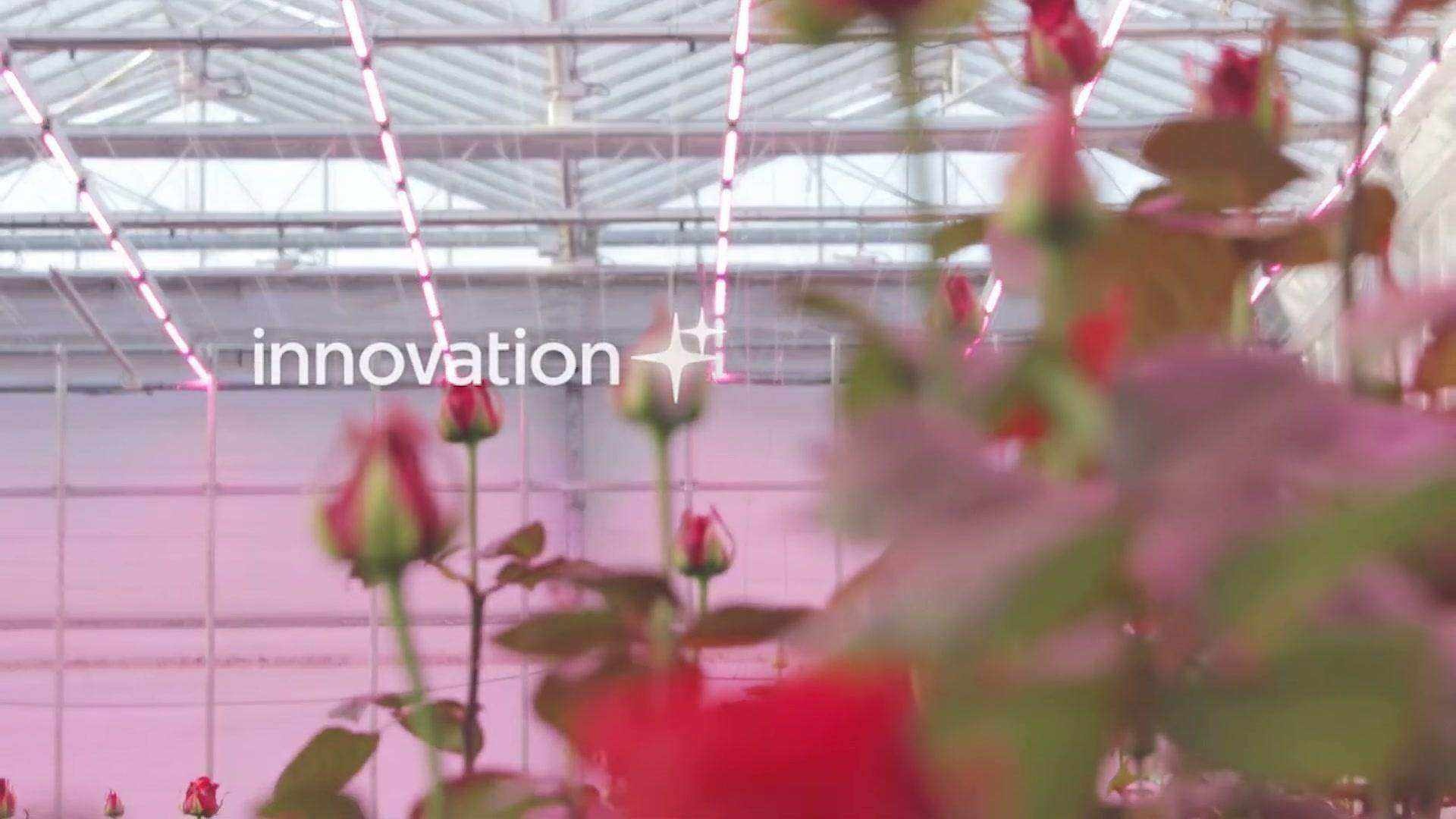 Result after 4 social media sharing cycles (quality 75 → 45)
Pipeline Breakdown
1
2
3
4
5
6
7
8
9
steps:
  - name: "social_media_compression"
    operation: "multi_compress"
    params:
      iterations: 4                 # Simulates 4 share cycles
      quality_start: 75             # First share at 75% quality
      quality_end: 45               # Final share at 45% quality
      decay: "linear"               # Consistent quality drop
      subsampling: 2                # Heavy subsampling (4:2:0)
Parameter Explanation:
iterations: 4- Each iteration represents one share/recompress cyclequality_start: 75- Mobile apps often compress to ~75% initiallyquality_end: 45- After 4 shares, quality degrades significantlydecay: "linear"- Quality drops evenly: 75 → 65 → 55 → 45subsampling: 2- Heavy chroma subsampling creates visible 8x8 blocks
What You’ll Learn
- How multi-generation compression creates compound artifacts
- The impact of chroma subsampling on image quality
- Realistic degradation patterns from social media platforms
Tutorial 2: Glitch Art Aesthetic
Goal: Create extreme digital artifacts for an abstract, glitch art aesthetic suitable for artistic projects.
Use Case: Book illustrations, album covers, digital art exploring degradation as aesthetic.
Running the Tutorial
1
sevenrad pipeline docs/tutorials/compression-filters/02-glitch-art.yaml
Expected Results
Output: tutorials/02-glitch-art/final/ containing 45 heavily distorted images
Intermediate Steps (preserved for inspection):
extreme_pixelation/- 45 pixelated framessevere_compression/- 45 compressed frames
Visual Characteristics:
- Massive pixel blocks where details used to be
- Severe JPEG blocking throughout
- Color banding creating abstract patterns
- Original content barely recognizable
- Surreal, digital artifact aesthetic
Visual Progression:
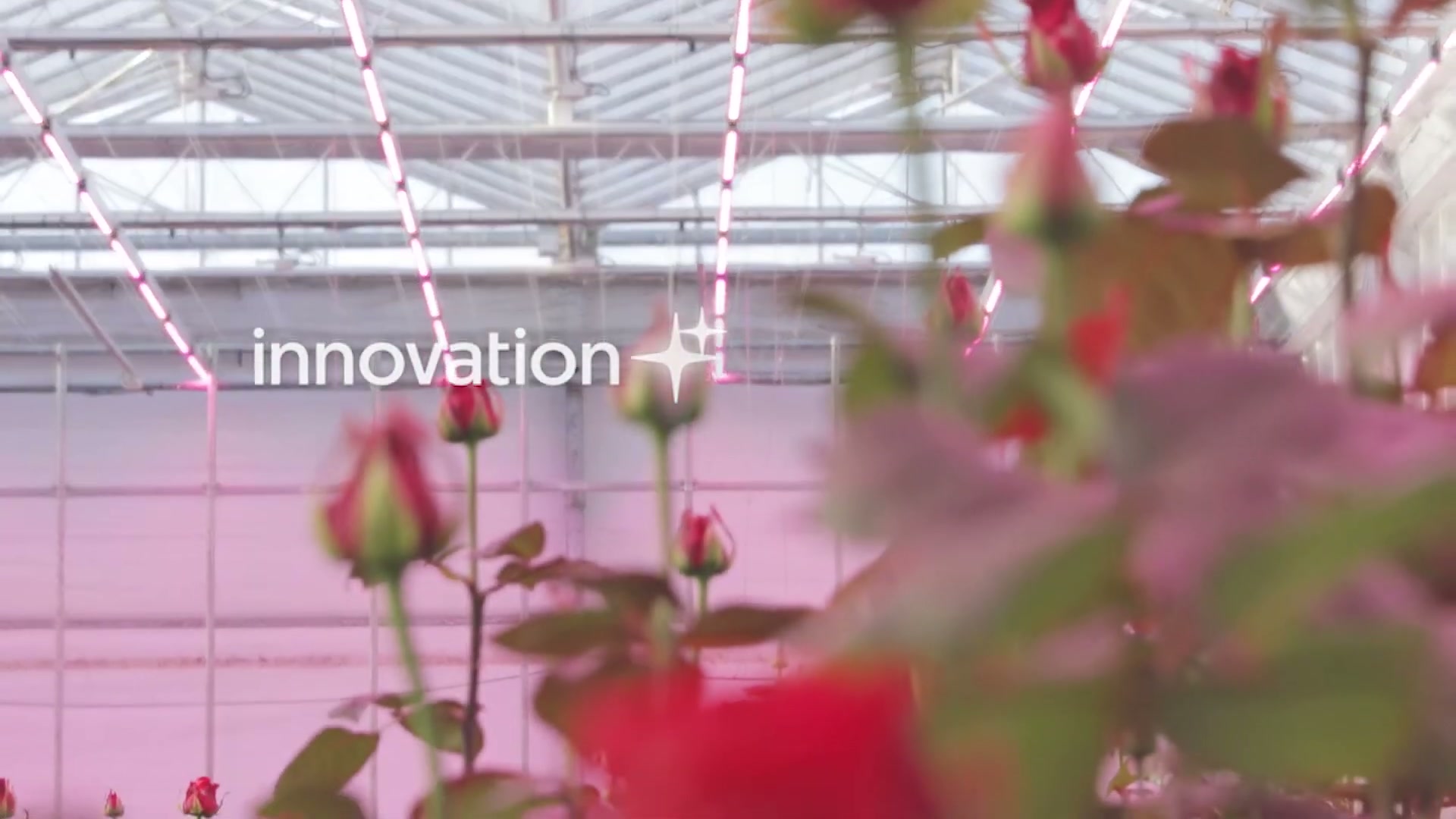 Original extracted frame
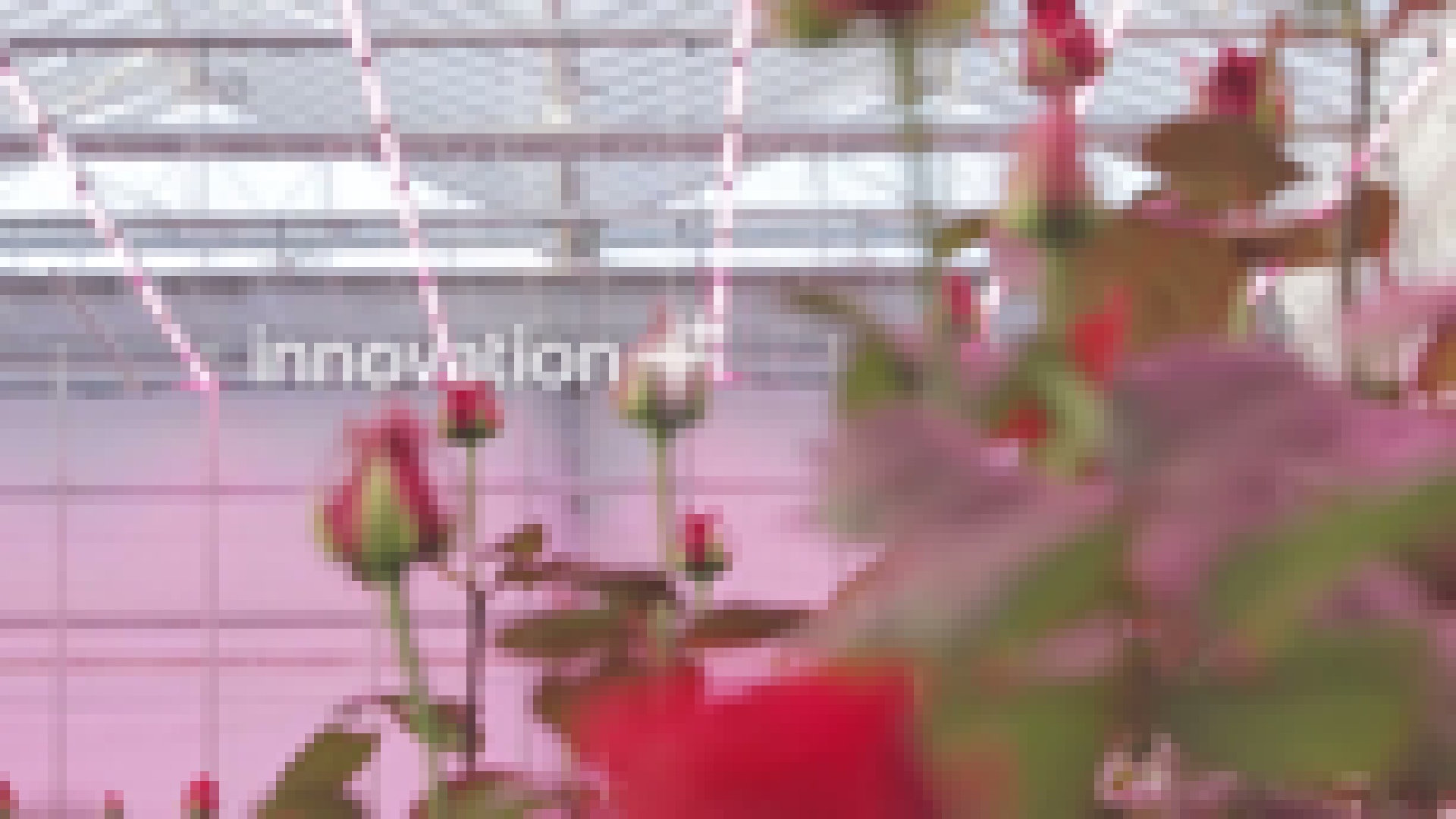 After Step 1: Extreme Pixelation (scale: 0.08)
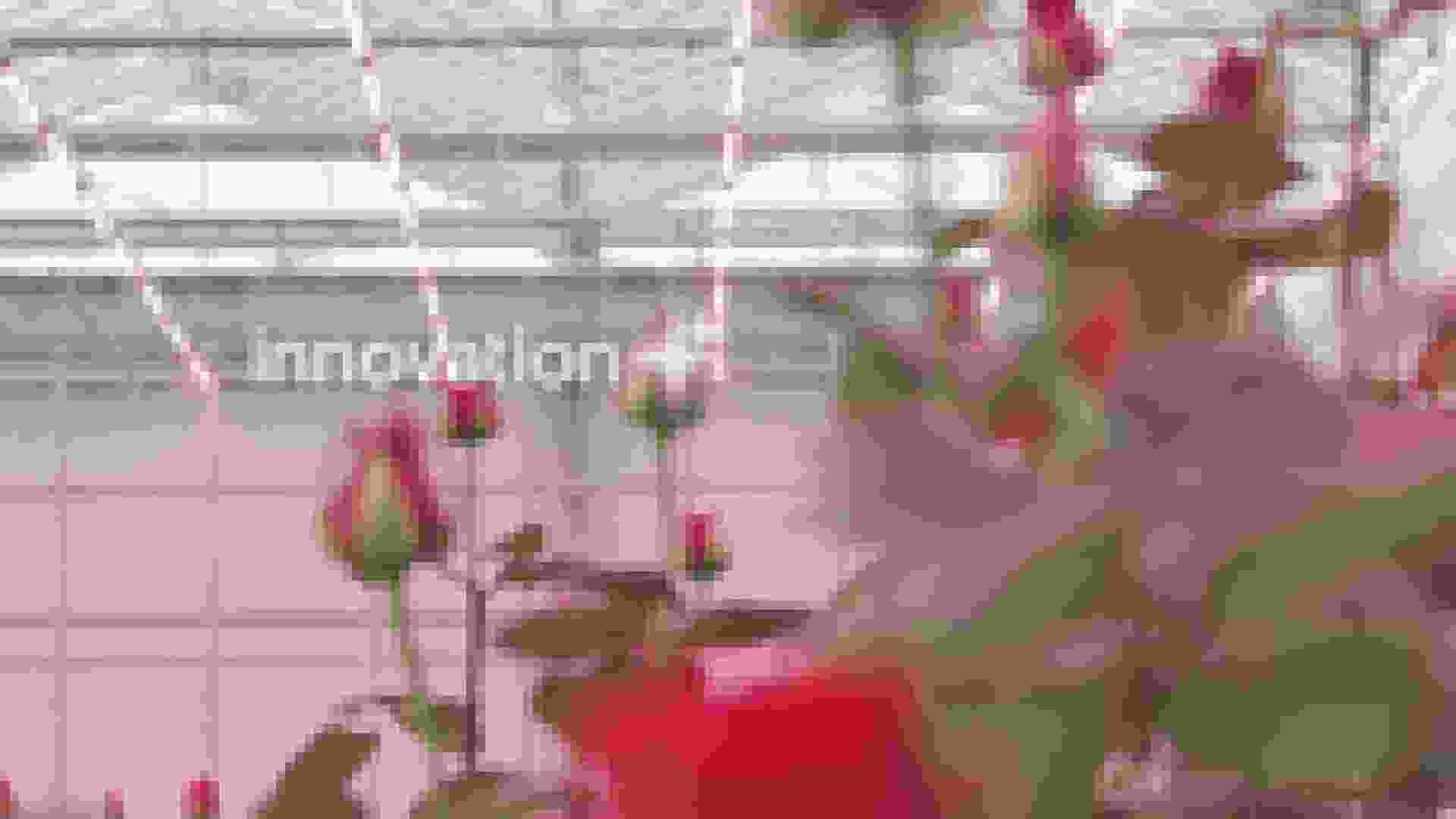 After Step 2: Severe Compression (quality: 5)
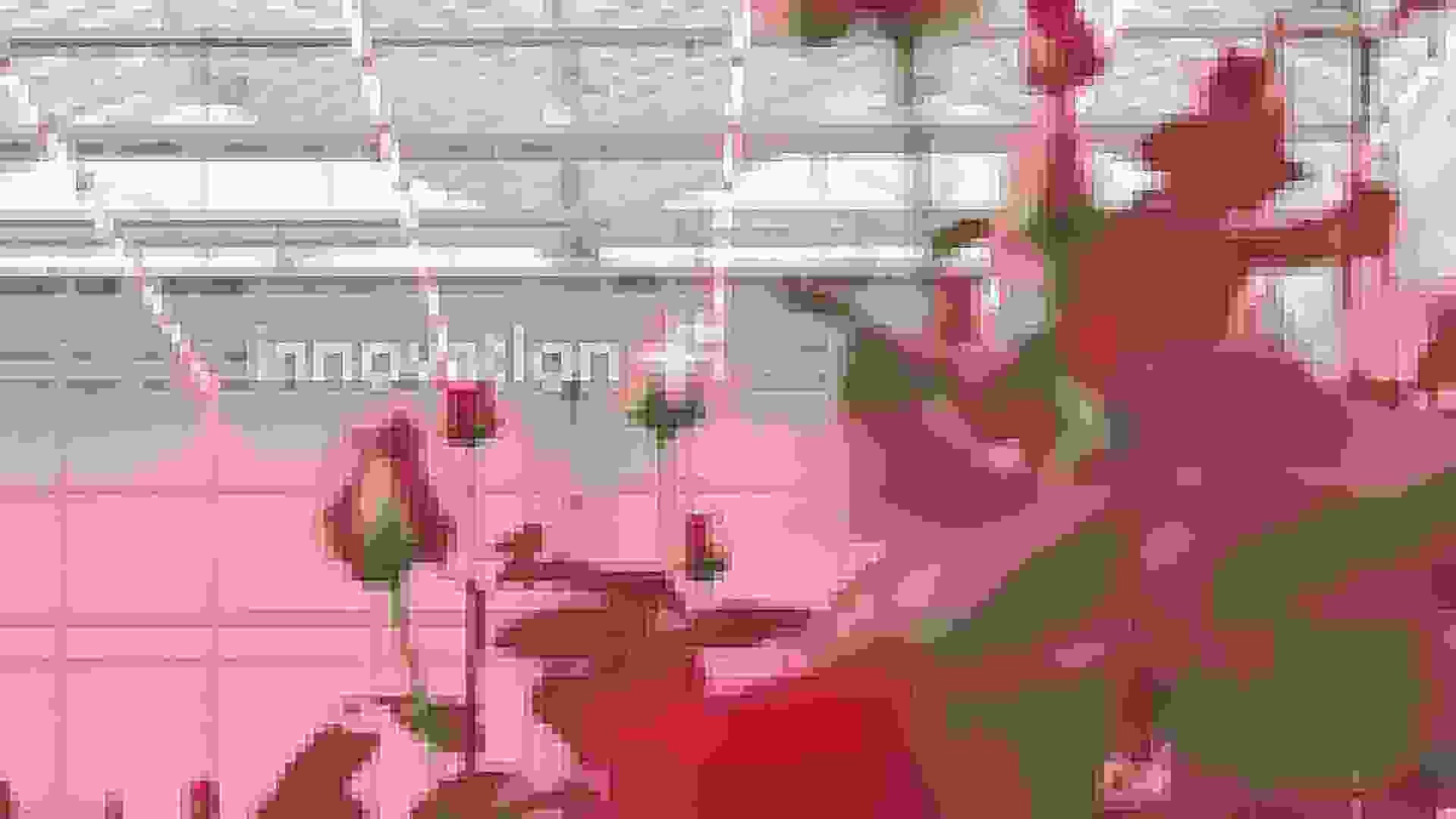 Final Result: After 12 multi-generation compression cycles
Pipeline Breakdown
1
2
3
4
5
6
7
8
9
10
11
12
13
14
15
16
17
18
19
20
21
22
23
24
25
steps:
  # Step 1: Extreme pixelation
  - name: "extreme_pixelation"
    operation: "downscale"
    params:
      scale: 0.08                   # Reduce to 8% of original size
      upscale: true                 # Then scale back up
      downscale_method: "bicubic"   # Smooth reduction
      upscale_method: "nearest"     # Harsh, blocky enlargement

  # Step 2: Severe compression
  - name: "severe_compression"
    operation: "compression"
    params:
      quality: 5                    # Very low quality
      subsampling: 2                # Maximum blocking

  # Step 3: Multi-generation compression
  - name: "multi_generation_glitch"
    operation: "multi_compress"
    params:
      iterations: 12                # Many compression cycles
      quality_start: 30
      quality_end: 5
      decay: "exponential"          # Rapid initial degradation
Parameter Explanation:
scale: 0.08- Reduces image to 8% (e.g., 1920x1080 → 154x86 → 1920x1080)upscale_method: "nearest"- Creates harsh pixel blocks instead of smooth interpolationquality: 5- Near-minimum JPEG quality for extreme artifactsiterations: 12- Aggressive multi-generation for compound distortiondecay: "exponential"- Most degradation happens in early iterations
What You’ll Learn
- Combining multiple operations for cumulative effects
- How downscaling with different resampling methods creates pixelation
- Using exponential decay for rapid quality degradation
- Preserving intermediate results for artistic exploration
Tutorial 3: VHS/Analog Video Degradation
Goal: Simulate the characteristic degradation of VHS tapes and analog video recordings.
Use Case: Nostalgic aesthetic for retro projects, 90s-inspired visuals, lo-fi video art.
Running the Tutorial
1
sevenrad pipeline docs/tutorials/compression-filters/03-vhs-analog.yaml
Expected Results
Output: tutorials/03-vhs-analog/final/ containing 45 frames with VHS aesthetic
Intermediate Steps:
scanline_blur/- Horizontal blur appliedanalog_compression/- JPEG compression added
Visual Characteristics:
- Horizontal blur resembling scan lines
- Moderate pixelation/softness
- Compression artifacts typical of analog-to-digital conversion
- “Tracking issues” appearance from motion blur
- Nostalgic VHS tape playback feel
Example Output:
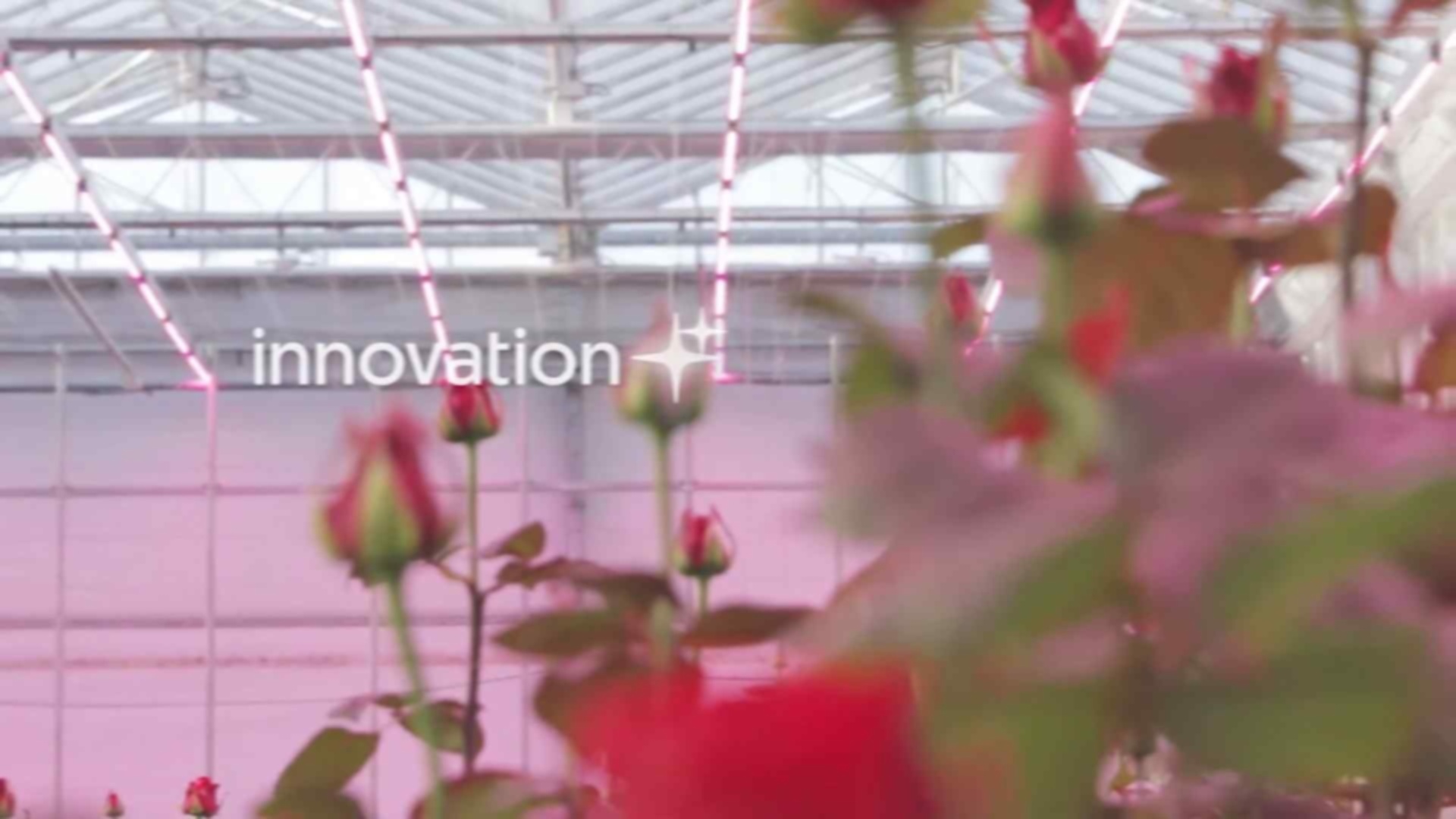 Final result showing VHS/analog video tape aesthetic
Pipeline Breakdown
1
2
3
4
5
6
7
8
9
10
11
12
13
14
15
16
17
18
19
20
21
22
23
steps:
  # Step 1: Horizontal motion blur (scan lines)
  - name: "scanline_blur"
    operation: "motion_blur"
    params:
      kernel_size: 7                # Moderate blur
      angle: 0                      # Horizontal direction

  # Step 2: Moderate compression
  - name: "analog_compression"
    operation: "compression"
    params:
      quality: 35                   # Medium-low quality
      subsampling: 2                # Heavy subsampling

  # Step 3: Slight pixelation
  - name: "resolution_reduction"
    operation: "downscale"
    params:
      scale: 0.5                    # Half resolution
      upscale: true
      downscale_method: "bilinear"  # Softer downscale
      upscale_method: "bilinear"    # Softer upscale
Parameter Explanation:
kernel_size: 7- Moderate horizontal blur simulates scan line bleedingangle: 0- Pure horizontal motion (0°) mimics horizontal scan linesquality: 35- Moderate compression typical of analog video capturescale: 0.5- Reduces resolution to mimic lower VHS resolution (e.g., 1920x1080 → 960x540 → 1920x1080)bilinearmethods - Softer resampling for that “analog” smoothness vs. harsh digital edges
What You’ll Learn
- Using motion blur with specific angles to simulate analog effects
- Balancing compression and downscaling for realistic degradation
- Creating period-specific aesthetics through filter combinations
Tutorial 4: Progressive Degradation Stages
Goal: Create a sequence showing progressive degradation from light to heavy, demonstrating the repeat parameter and intermediate stages.
Use Case: Visual comparisons, understanding degradation levels, artistic exploration of digital decay.
Running the Tutorial
1
sevenrad pipeline docs/tutorials/compression-filters/04-progressive-cascade.yaml
Expected Results
Output: tutorials/04-progressive-cascade/final/ containing 45 heavily degraded images
Intermediate Steps (showing progression):
stage_1_light/- Light compression (45 frames)stage_2_moderate/- Moderate compression applied twice (45 frames)
Visual Characteristics:
- Stage 1: Subtle artifacts, most details preserved
- Stage 2: More noticeable blocking, some detail loss
- Stage 3: Heavy artifacts, significant quality reduction
- Clear visual progression across all three stages
Progressive Degradation Stages:
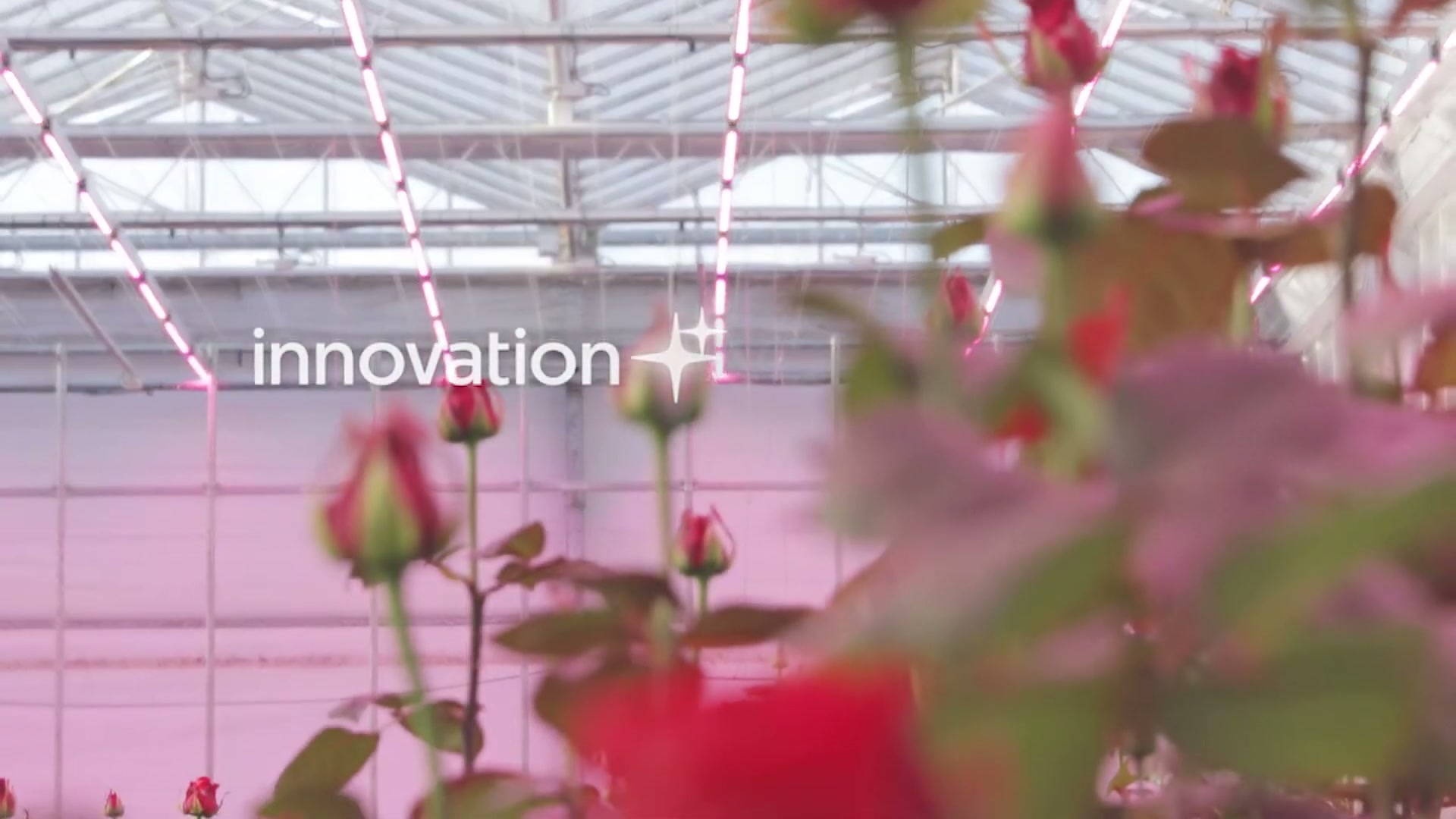 Stage 1: Light compression (quality: 70, subsampling: 1)
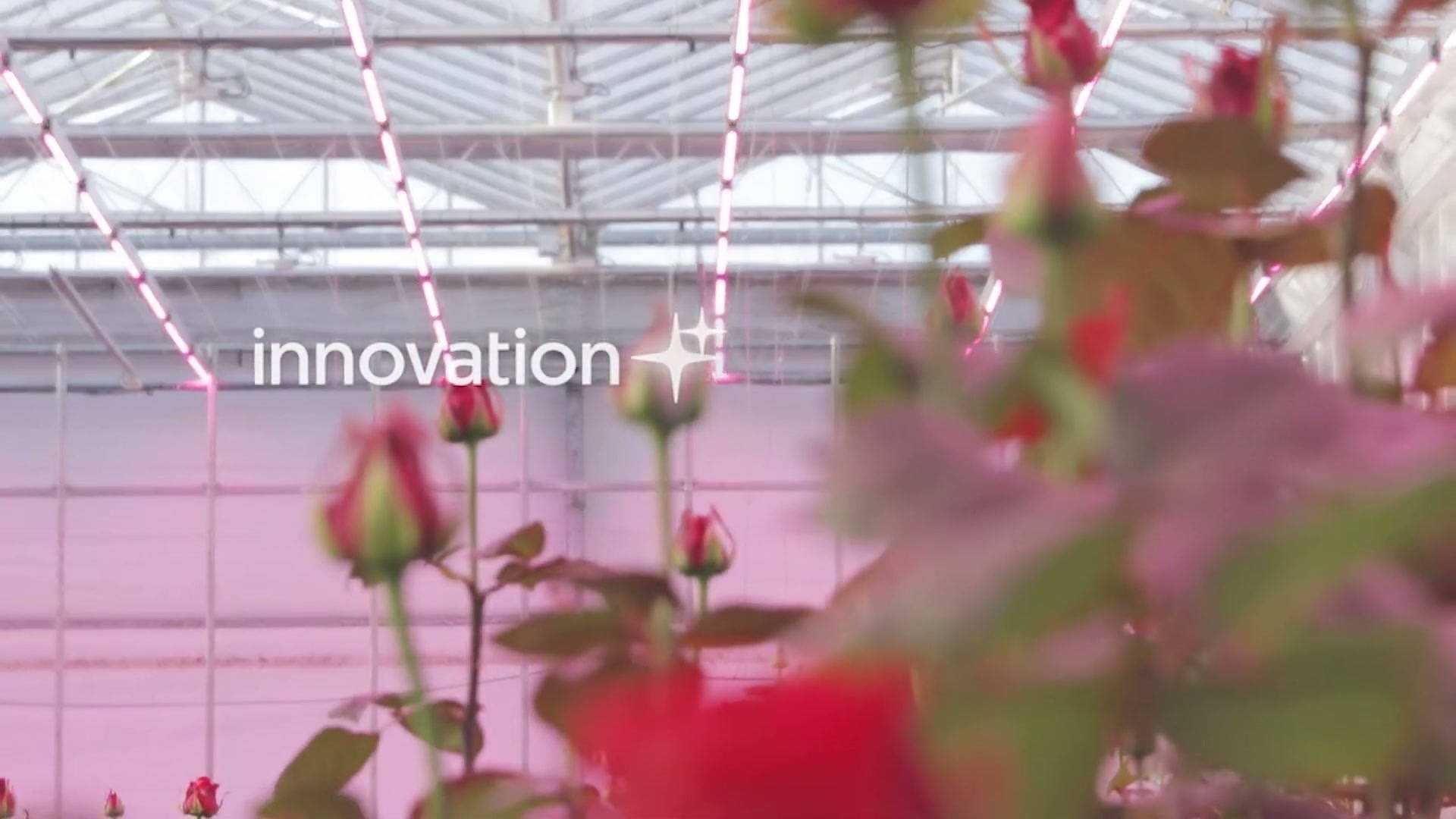 Stage 2: Moderate compression applied twice (quality: 50, repeat: 2)
 Stage 3: Heavy multi-generation compression (5 iterations, exponential decay)
Pipeline Breakdown
1
2
3
4
5
6
7
8
9
10
11
12
13
14
15
16
17
18
19
20
21
22
23
24
steps:
  # Stage 1: Light degradation
  - name: "stage_1_light"
    operation: "compression"
    params:
      quality: 70
      subsampling: 1

  # Stage 2: Moderate degradation (using repeat)
  - name: "stage_2_moderate"
    operation: "compression"
    repeat: 2                       # Apply compression twice
    params:
      quality: 50
      subsampling: 2

  # Stage 3: Heavy degradation
  - name: "stage_3_heavy"
    operation: "multi_compress"
    params:
      iterations: 5
      quality_start: 40
      quality_end: 20
      decay: "exponential"
Parameter Explanation:
quality: 70- Light compression maintains good qualitysubsampling: 1- Moderate subsampling (4:2:2) less aggressive than 4:2:0repeat: 2- Applies the same compression twice for cumulative effectquality: 50- Lower quality for second stageiterations: 5- Final stage uses multi-compression with decaydecay: "exponential"- Rapid quality drop for heavy final artifacts
What You’ll Learn
- Using the
repeatparameter for cumulative degradation - Difference between
repeatandmulti_compresswith decay - Creating visual progressions by chaining operations
- Inspecting intermediate results to understand each stage
Advanced Topics
The Repeat Parameter
The repeat parameter (1-100) applies any operation multiple times sequentially:
1
2
3
4
5
- name: "repeated_compression"
  operation: "compression"
  repeat: 5                 # Apply 5 times
  params:
    quality: 50             # Same quality each iteration
When to use repeat vs. multi_compress:
- Use
repeat: When you want consistent parameters each iteration - Use
multi_compress: When you want progressive quality decay
Combining Effects
All filters can be combined in any order. Order matters:
1
2
3
4
5
6
7
8
9
# Pixelate THEN compress (visible pixel blocks with compression)
steps:
  - operation: "downscale"
  - operation: "compression"

# Compress THEN pixelate (compression artifacts enlarged by pixelation)
steps:
  - operation: "compression"
  - operation: "downscale"
Parameter Tuning Tips
For subtle effects:
- Compression quality: 70-85
- Downscale scale: 0.7-0.9
- Motion blur kernel_size: 2-3
- Multi_compress iterations: 2-3
For extreme effects:
- Compression quality: 1-15
- Downscale scale: 0.05-0.15
- Motion blur kernel_size: 20-50
- Multi_compress iterations: 10-20
See Filter Guide for comprehensive parameter ranges.
Troubleshooting
Not Enough Frames Extracted
Problem: Expected 45 frames but got fewer
Solutions:
- Check video duration - ensure video is longer than 3m15s
- Verify YouTube URL is correct and accessible
- Check segment times don’t exceed video length
Quality Not Degrading as Expected
Problem: Images don’t show enough artifacts
Solutions:
- Check
qualityparameter - lower values create more artifacts - Ensure
subsampling: 2for maximum blocking - Increase
iterationsin multi_compress - Try exponential decay instead of linear
Pipeline Runs Too Slowly
Problem: Processing 45 frames takes too long
Solutions:
- Enable parallel processing (default):
sevenrad pipeline tutorial.yaml - Reduce frame count by increasing
interval(e.g.,interval: 0.2for fewer frames) - Use fewer operations or lower iterations
- Check system resources
Operation Not Found Error
Problem: Operation 'compression' not found
Solutions:
- Ensure you’re using the latest version with compression filters
- Check operation names match exactly:
compression,downscale,motion_blur,multi_compress - Verify operations are registered in
src/sevenrad_stills/operations/__init__.py
YAML Syntax Errors
Problem: Invalid YAML syntax or indentation errors
Solutions:
- Check YAML indentation - use spaces, not tabs
- Ensure proper list syntax with
-for each step - Validate YAML with online validator
- Compare to working examples in this tutorial
Next Steps
After completing these tutorials:
- Experiment with parameters - Adjust quality levels, iterations, and scales
- Create custom pipelines - Combine operations in new ways
- Try different segments - Process various video sections
- Share results - Document your findings and aesthetics
- Read comprehensive docs:
- Filter Guide - All parameter ranges and effects
- YAML Pipeline System - Complete pipeline system documentation
- Operations Reference - Detailed operation specs
Questions or Issues?
- Check Filter Guide for parameter recommendations
- Review YAML Pipeline System for pipeline system details
- Report issues on the project repository
Happy experimenting with compression filters!